
Managing Google Local Service Ads (LSAs)
IMPORTANT: Please read these instructions carefully and follow the recommended steps to manage your practice's Local Services Ads (LSA) leads. Failure to do so can result in inefficient advertising spend and lower return on investment (ROI).
Summary
Google's Local Service Ads (LSAs) are a pay-per-lead advertising product that can help your practice generate more ideal patients at a competitive cost per lead. For more about how they work, please read our summary on LSA Ads for Dental Practices.
With LSA ads, your practice pays a certain amount per phone call or message from a potential patient. The amount you pay is based on local market dynamics and competition.
Receiving Leads
Leads come into your Google Local Service Ads account one of two ways: phone calls to your practice's phone number, or text messages.
When a message lead is submitted, the email address(es) associated with your account should receive a notification. If you have text notifications turned on for messaging leads, you can also manage them via mobile phone or an existing text number you're using.
Related Documentation:
Managing Leads
Managing LSA leads (by both classifying them and rating them — see below) is critical for giving Google the information it needs to optimize your ads, improve lead quality, and ultimately increase your return on investment (ROI).
IMPORTANT: We strongly recommend that you check the LSA dashboard and manage leads on a daily basis. For most practices, it takes less than 5 minutes per day.
To manage your LSA leads:
1) Log into your account at: https://ads.google.com/localservices/
2) Choose the appropriate LSA account from the list.
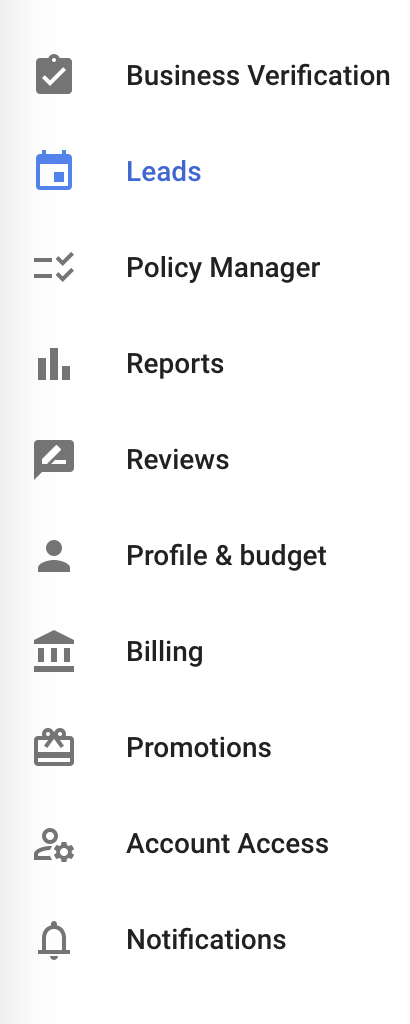
3) Once you are in the account, if it does not default to the "Leads" screen, click the three bars at the top left of the screen and select "Leads."
Documenting Lead Information
When you select a lead within the platform, you'll have a section where you can enter the patient name, email, and basic notes. In order to remain HIPAA-compliant, DentalScapes advises that you do NOT enter any protected health information (PHI), so you can ignore the "Customer Name" and "Customer Email" fields.
However, if the lead is NOT qualified, use the "Your Notes" field to add any supporting information (for example, you might enter "Current patient," or "Inquired about Medicaid and we do not participate," etc.). This will help Google make a determination on whether to credit your account if you rate it as unqualified (see below).

Rating Leads
Google uses an AI-assisted process where they automatically credit leads they deem to be irrelevant to your practice. Rating leads is critical to ensuring your practice does not pay for leads that you cannot help.
Their AI system bases this decision on the "Rate This Lead" feature.
To rate a lead:
1) Click on "Rate This Lead" in the upper right of the lead view.
2) Select one of the following options:
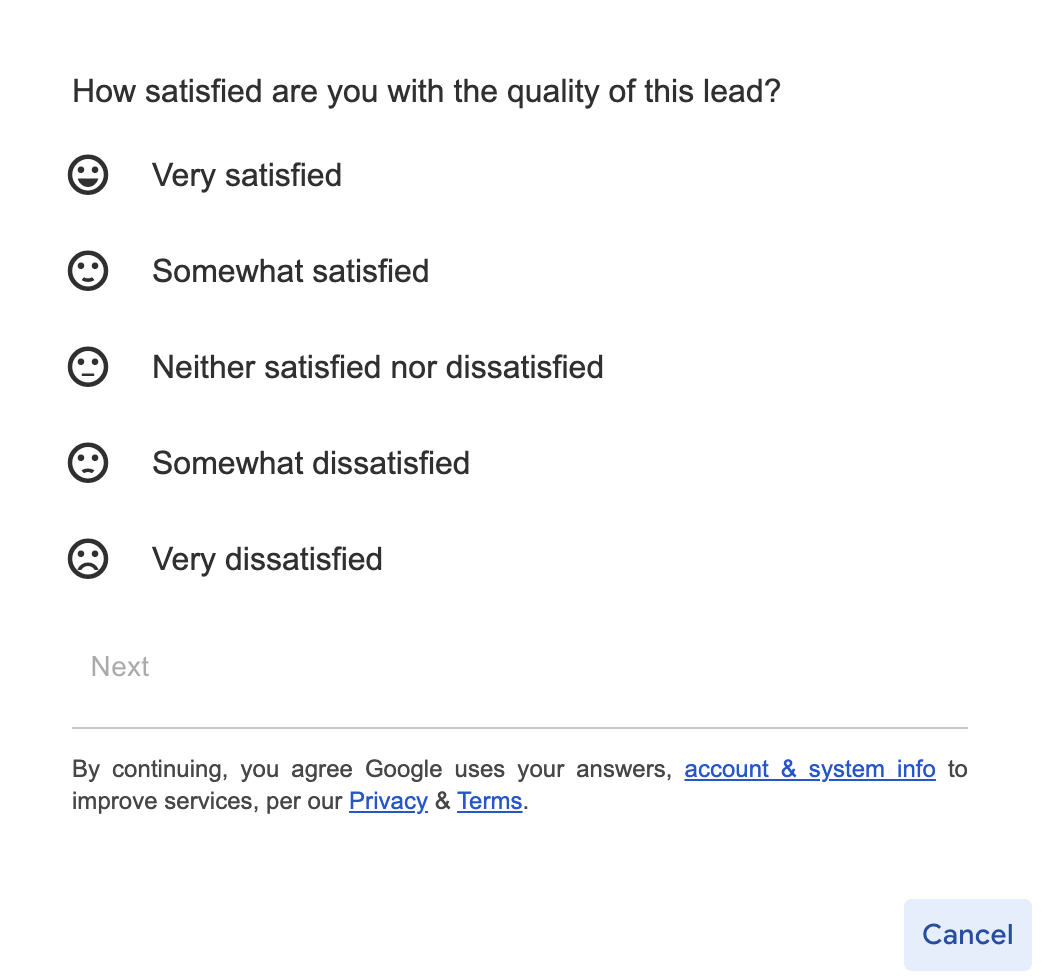
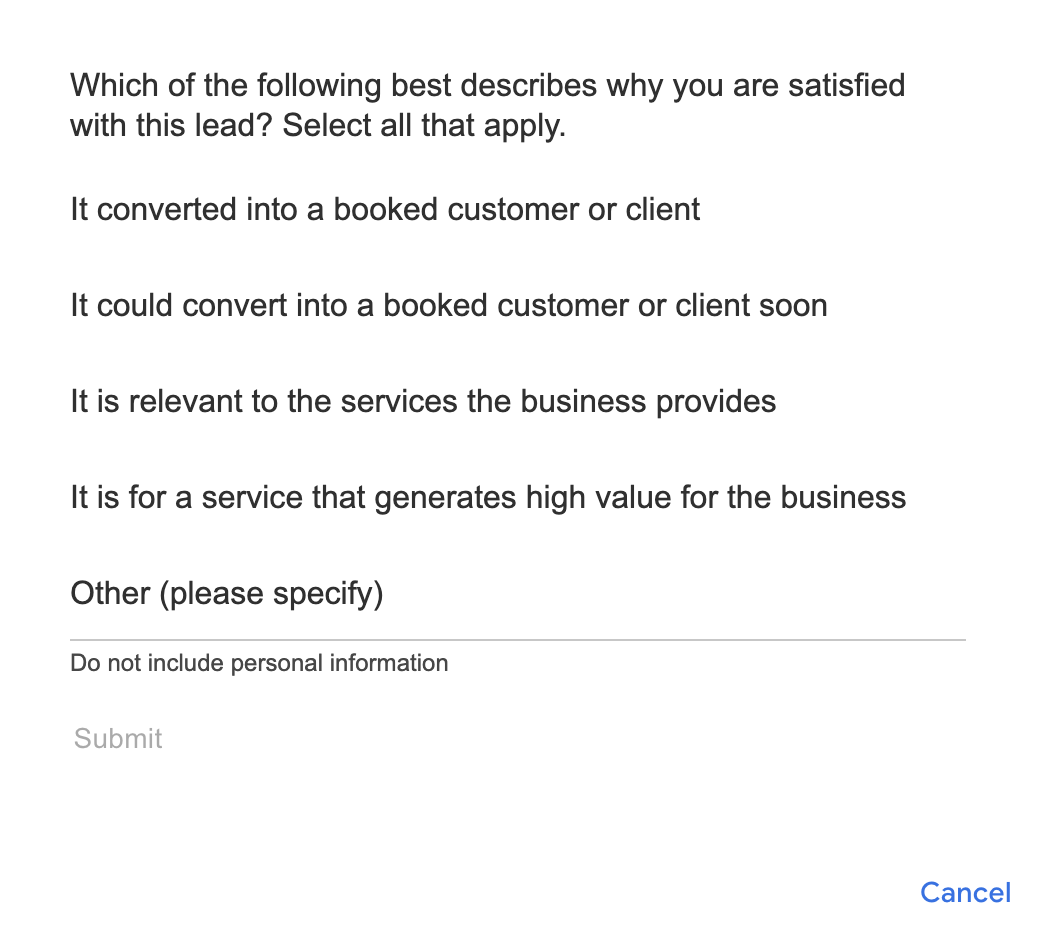
If you select "Very Satisfied" or "Somewhat Satisfied," it will ask you to provide more context with one of the following selections:
If you select "Somewhat Dissatisfied" or "Very Dissatisfied," it will ask you why you were dissatisfied:
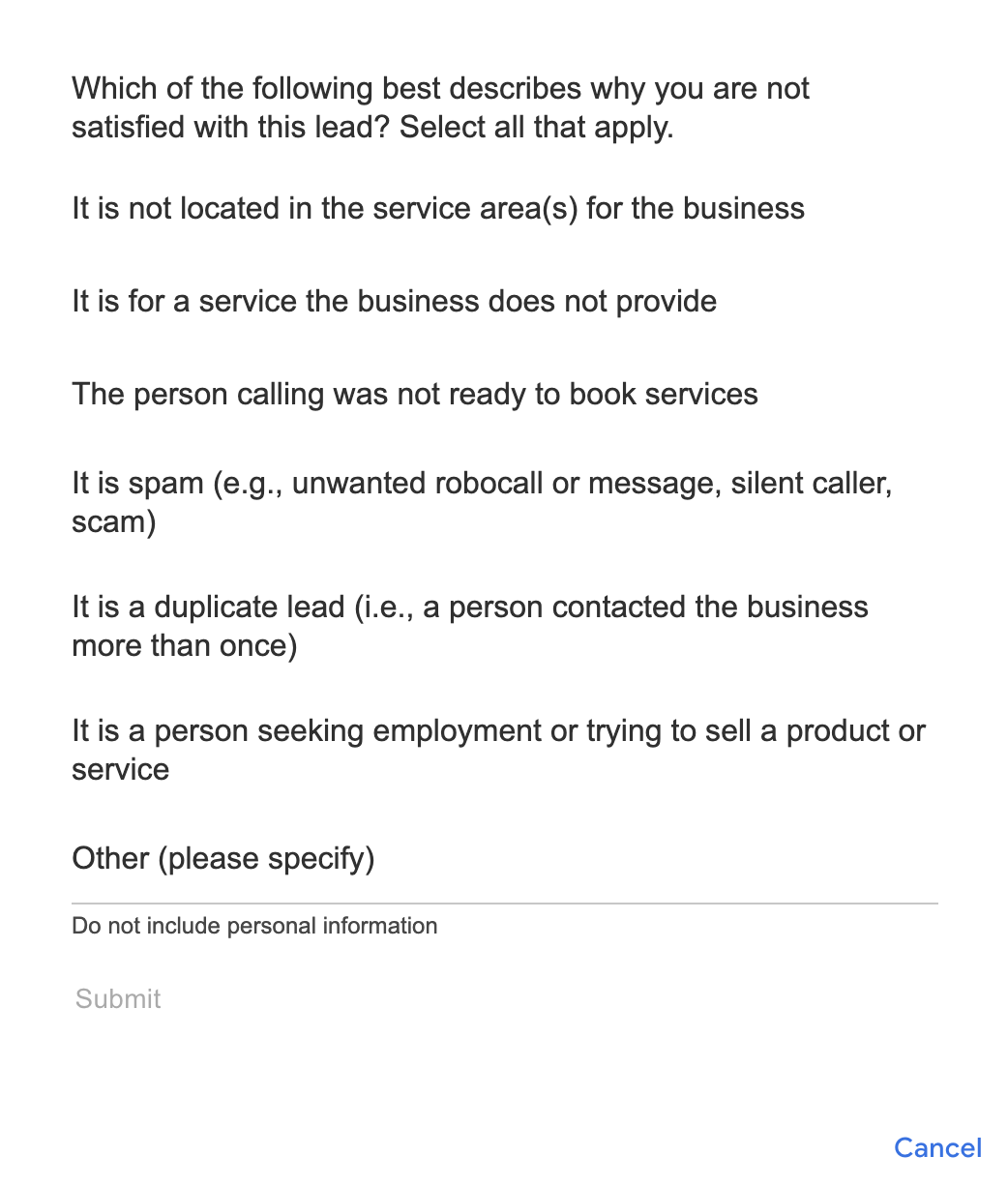
If you rate a lead as either "Dissatisfied" or "Very Dissatisfied," it is very important that you provide Google with enough information to determine if they should issue a credit for the lead.
The "Other (Please Specify)" field is very important when the reason for your dissatisfaction is not among Google's listed options.
When to Select "Very Dissatisfied" and "Other" in Rating Leads — Common Scenarios
IMPORTANT: Always rate leads as "Very Dissatisfied," select "Other" and specify your rationale if ANY of these are true:
- The lead is a current patient
- The lead mistakenly called your practice, thinking it was a different one (this sometimes happens if competitors have similar names or people just aren't paying attention)
- The lead's insurance is not accepted by your practice and you cannot help
3) After rating a lead, mark it as either "Booked" (if the patient scheduled) or "Archived" (if the patient did not schedule / you cannot help)
That's it!
Questions?
If you have any questions at any time about managing LSA leads in the dashboard, please reach out to [email protected] and we will be happy to help!